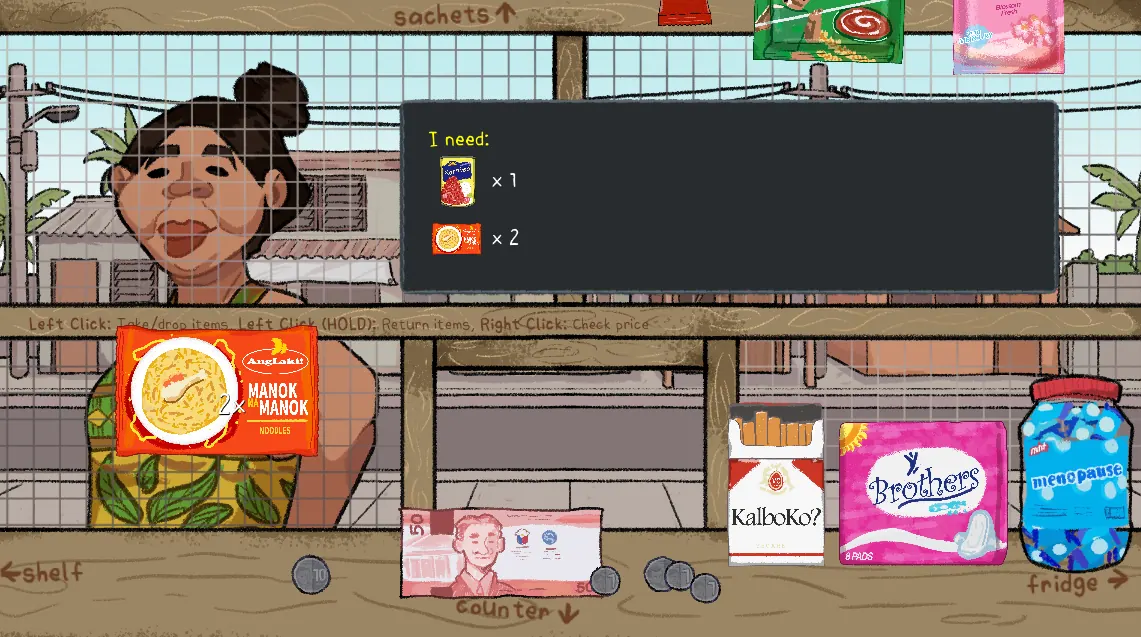
The controls you need
| Action | With a mouse | On this touch player |
|---|---|---|
| Take or drop an item | Left click | Tap the item or destination |
| Return an item | Hold left click | Press and hold |
| Check the price | Hold right click while carrying an item | Pick up an item, then tap Price |
| Continue dialogue | Click when prompted | Tap when prompted |
| Look around | Move the pointer toward an edge | Use the Look arrows |
The touch buttons translate your gestures into the original game’s mouse controls. They appear on touch devices. Price keeps the held item’s cost visible. Tap Done to return to normal interaction.
Find your way around the shop
Use the labels drawn into the store: shelf on the left, fridge on the right, sachets above, and counter below. Moving your mouse toward these edges changes where you look.
On a phone, the Look buttons give you the same directional controls without needing a hovering mouse. Each arrow moves one view at a time. Use the opposite arrow to return to the customer. The center button stops edge panning. Let the view settle before selecting a product.
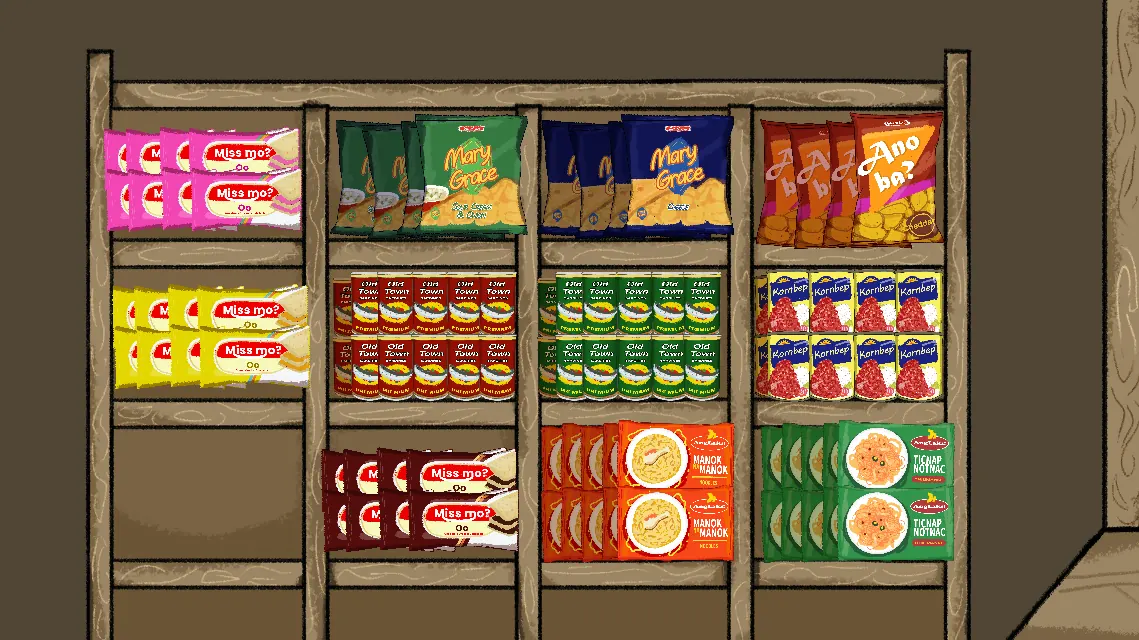
Take an order one item at a time
- Read the customer’s dialogue and order. Check the quantities as well as the package.
- Look toward the correct shelf, sachets or fridge.
- Take the product, then check its price while you are holding it if you need to total the order.
- Bring the requested item to the counter. Repeat for the remaining quantity.
- Finish the customer interaction and read the next dialogue before moving on.
A normal click picks up or puts down an item. Holding the button is a different action: returning it. If items keep going back, use a brief tap rather than a long press.
Keep track of the money
Use the cash drawer and the game’s calculator when an order requires payment. Count the amount actually given, then subtract the total price to find the change.
The drawer artwork shows separate places for coins and notes. Move your view down to see it clearly instead of trying to work from the customer view.
Need help with the subtraction? Open the change helper. It can also show when the payment is short.
Make room for the story
Use Fullscreen from the player toolbar to make the store easier to read. On a phone, landscape gives the game considerably more usable room. Headphones help you notice the shift in atmosphere.
This is a short horror story with shopkeeping interactions. Read the conversations rather than treating every line as a checkout prompt. If you need practical help without story spoilers, use the first-shift walkthrough.